

I’m happy to announce that the next major version of Scroll Cinema is now available, alongside a new YouTube tutorial series with short, focused walkthroughs covering everything from fundamentals to more advanced workflows.
With this release, Scroll Cinema has officially reached parity with A Modern Ghost, which was originally created using an earlier, undistributable version of the software.
A Modern Ghost has now been migrated to the new system, and the software has been battle-tested in finally making this piece work well on the web, all through an editor experience that’s as easy as to use any other creative software’s, able to be picked up by anyone interested — without requiring knowledge of programming. A Modern Ghost can now even be imported directly into Scroll Cinema, allowing you to see exactly how it was made.
This latest release of Scroll Cinema boasts the following major features — altogether they not only allow you to make animations that can be scrolled in any direction, but they now fulfill one of Scroll Cinema’s core tenets of supporting complex cinematic experiences.
Axis Switches
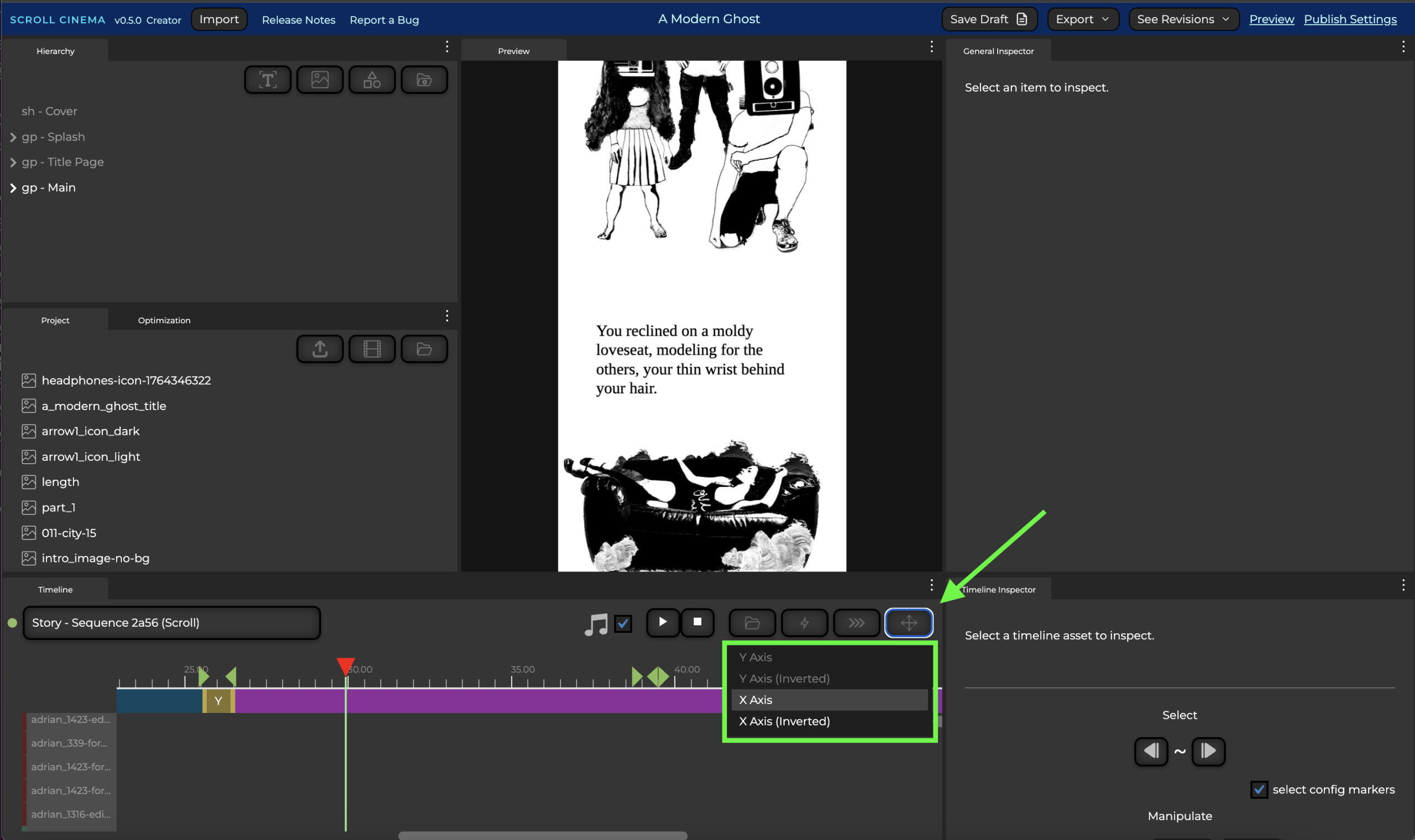
Axis Switches now allow you to use both vertical and horizontal scrolling as an expressive tool in your storytelling.
Whether you want your story to scroll up, down, left, or right, you can easily configure it, and even switch between axes, creating illusions of moving through space as your creativity or story demands.
Easily visualize transitions between the axes in the Timeline view with a special highlighted track, showing you exactly where transitions happen, allowing you to move the axis switches alongside other timeline assets.
While touch devices and trackpads natively support horizontal scrolling, Scroll Cinema also has a compatibility layer with keyboards and mice:
- Keyboard directional arrows and WASD allow users to scroll vertically or horizontally.
- Mouse users can press the Shift key while scrolling to move horizontally if they don’t have a horizontal scroll wheel.
See the tutorial on how to use Axis Switches here.
Reel Actions

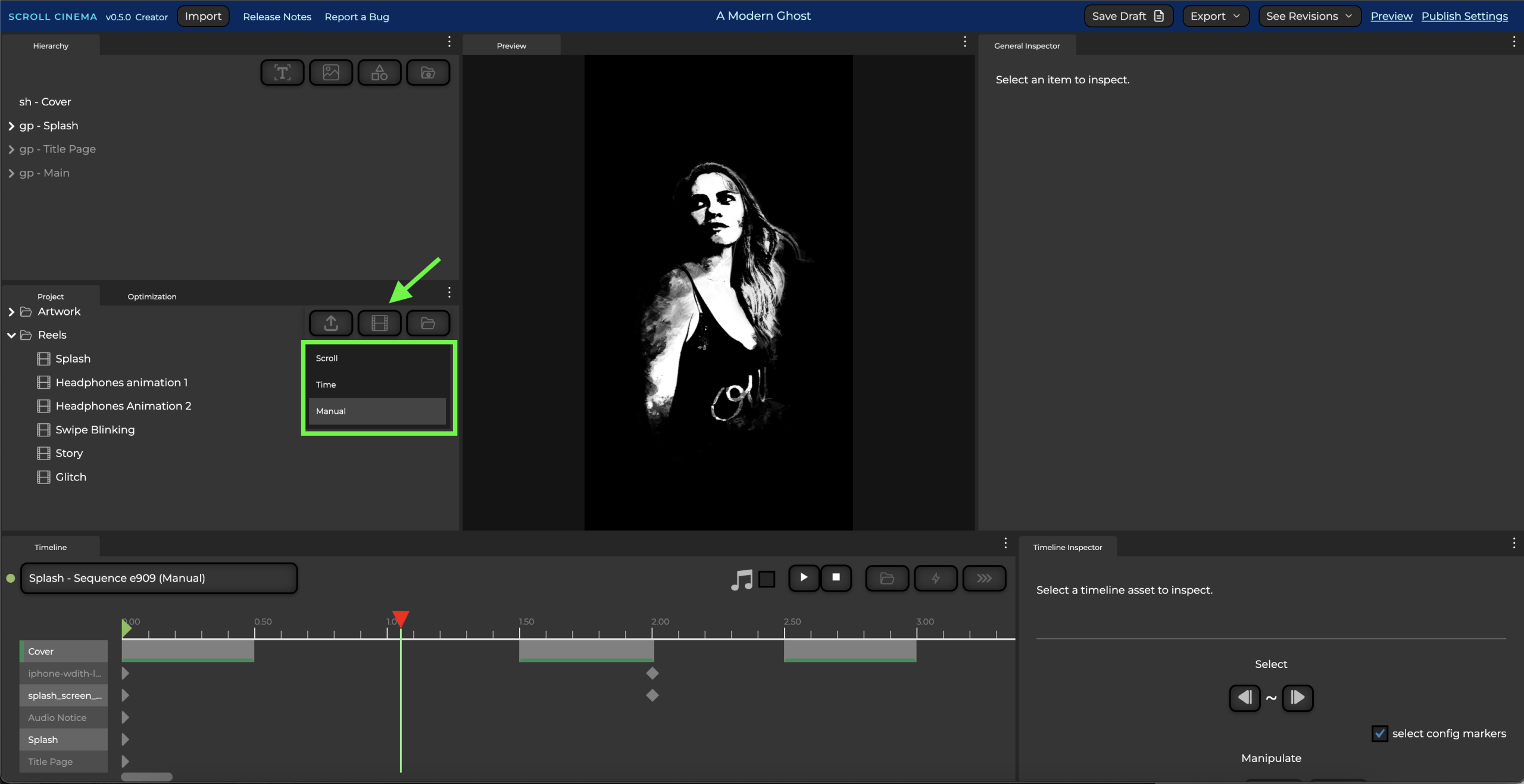

New Reel Actions give you the ability to manipulate playback based on either user interaction or timeline triggers:
- Calling ActivateDefault will evaluate the reel’s first frame; in the case of Scroll or Manual reels, this will also put them into an ‘active’ state that will allow them to accept additional input actions.
- Reels can also be activated or played on app load using the Initialization Type setting.
- Upon Play, Pause, or Stop…
- Time reels will behave like traditional videos, with play causing them to evaluate, pause causing them to stop executing in place, and stop causing them to reset and evaluate at 0.
- Scroll reels will activate any valid autorun intervals on play, and they will stop in the middle of the interval on pause or stop (both pause and stop have the same effect).
- Manual reels will act like scroll sequences, but they will not be affected by either scrolling or time after an interval completes unless there is further activation.
- The Deactivate wrap mode and action will cause a reel to stop evaluating but leave its animation state intact, allowing for subsequent reels to pick up where it left off.
Using these actions and attributes, you can now create introductory splash screens, use buttons to activate animations, or string together reels in sequence by activating a subsequent reel after one finishes.
See a tutorial on using Reel Actions here.
Reel Previewing

Scroll and Manual reels with autorun markers can now be previewed directly in the editor.
The UI for adding autorun intervals has also now been put behind a dropdown, clearing up space in the timeline header.
Animation Easing

In order to make animations smoother and more expressive, clips and keyframes can now be configured to use a different easing, including quadratic, sine, cosine, elastic, and bounce curves.
Sequences also now have a Default Easing attribute, accessible in the Timeline Inspector, which specifies the default easing for newly created clips and keyframes.
Note: Easing for keyframes will apply to the interval following the target keyframe.
New Tracks
Enable/Disable Node
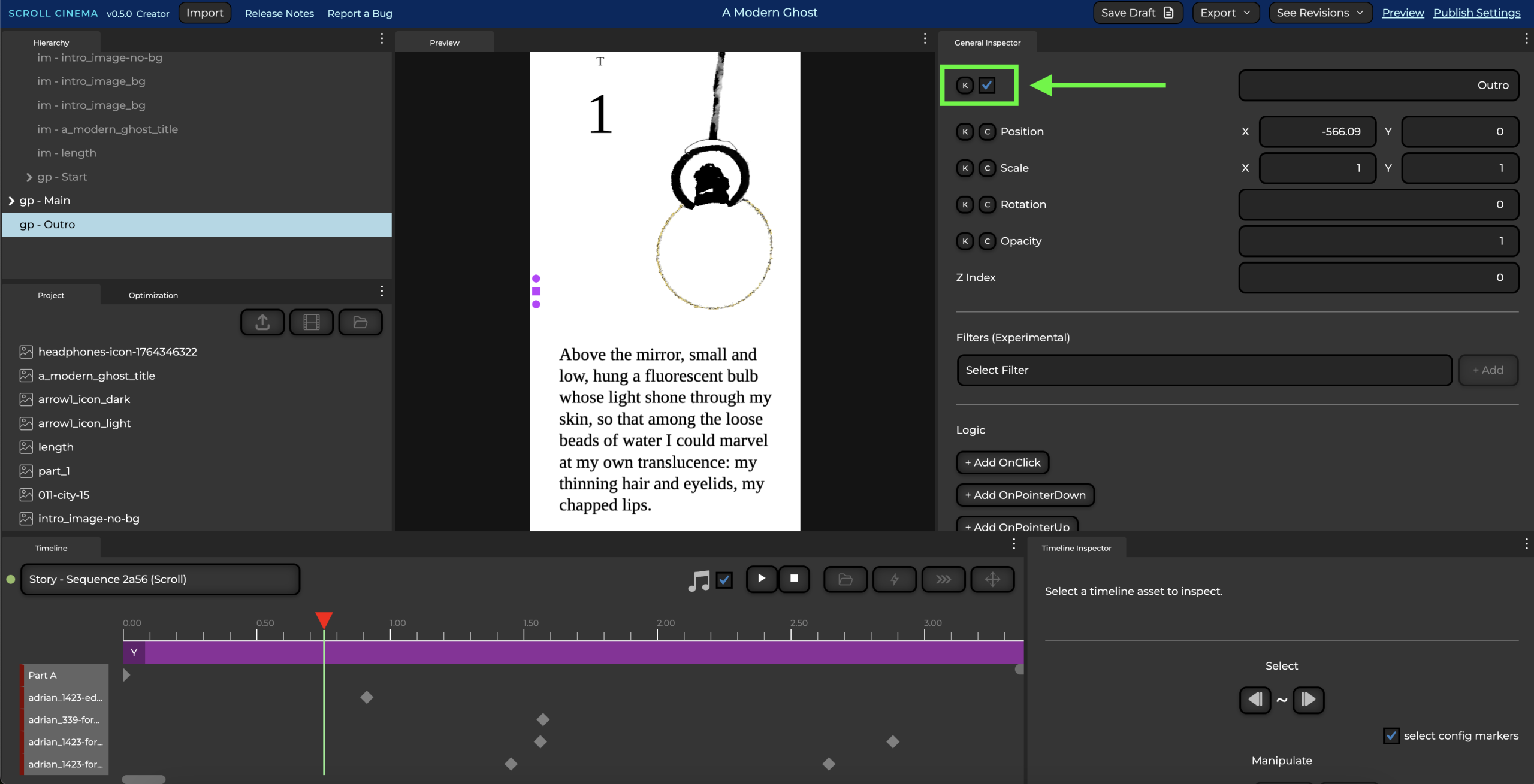
Nodes can now be easily directly enabled and disabled via the timeline, allowing for easier project optimization and organization. (Before, enabling and disabling nodes required the use of timeline triggers, which was cumbersome and inefficient).
Image Source

The Image Source attribute can now be keyframed, allowing for easy configuration of frame-by-frame animation.
Audio Speed

Audio Source speed can now be animated, allowing for compelling auditory effects.
Image Drag and Drop
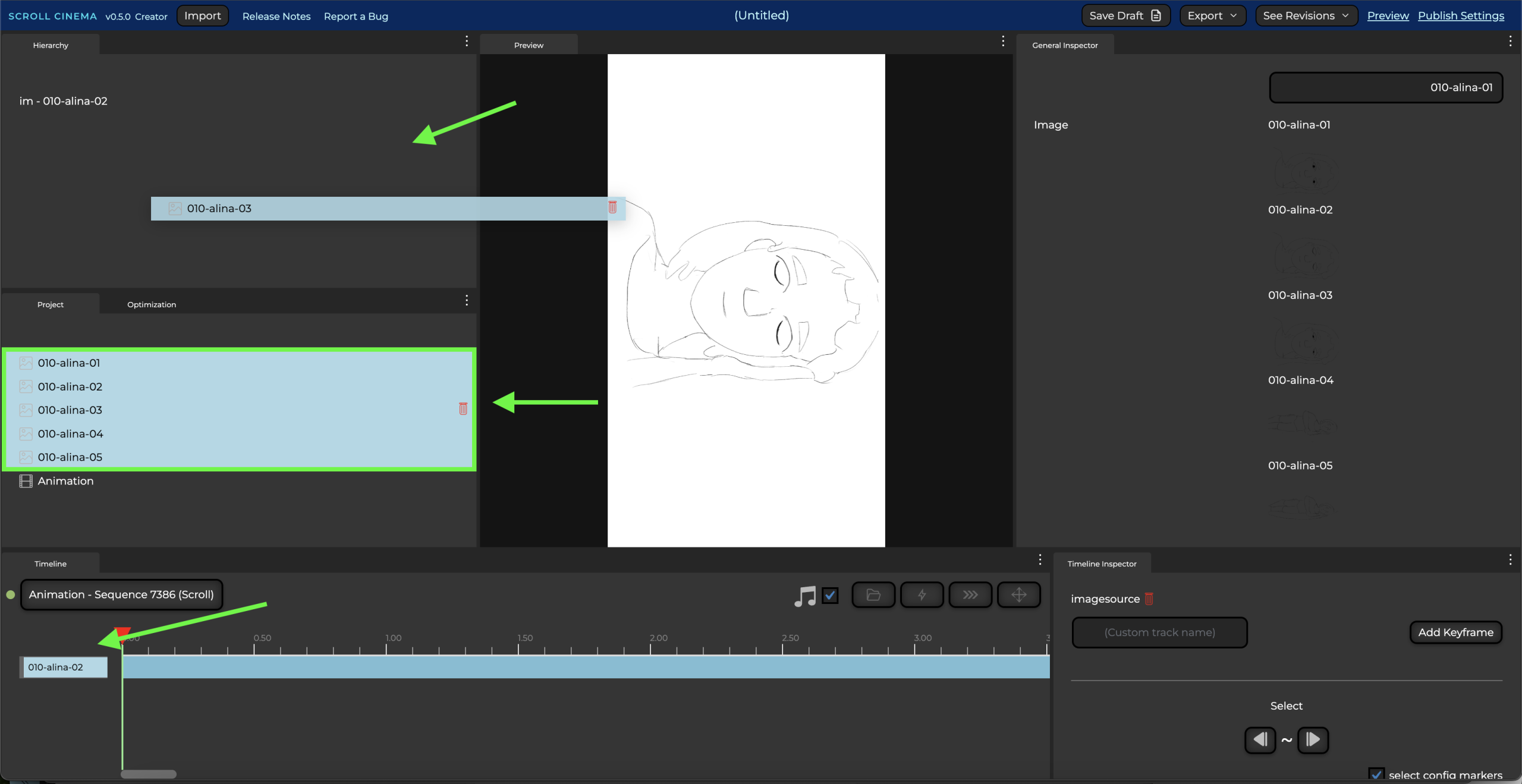
Images can be dragged from the Project window into the Hierarchy to create nodes, as well as dragged onto Image Source track labels to create keyframes.
Improved Logic for Buttons
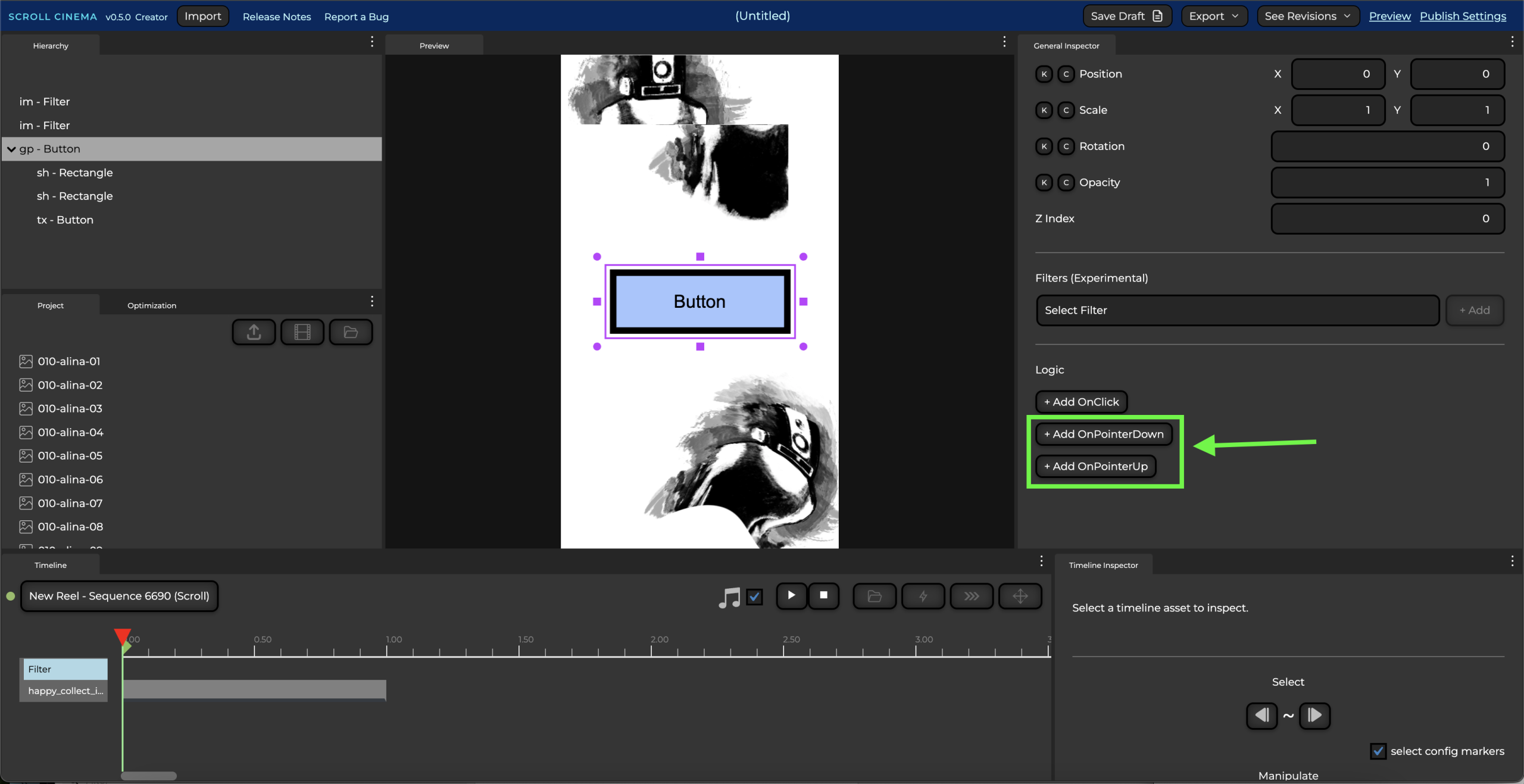
The Logic system now includes support for OnPointerDown and OnPointerUp events, as well as the Node actions SetOpacity and SetImage.
This makes it possible to configure buttons with visual feedback that change images or color when pressed.
Filters (Experimental)
Filters allow for configuring and animating postprocessing effects. Currently, the filters Glitch and Twist are available, with more on the way.
Default Text Creation Options
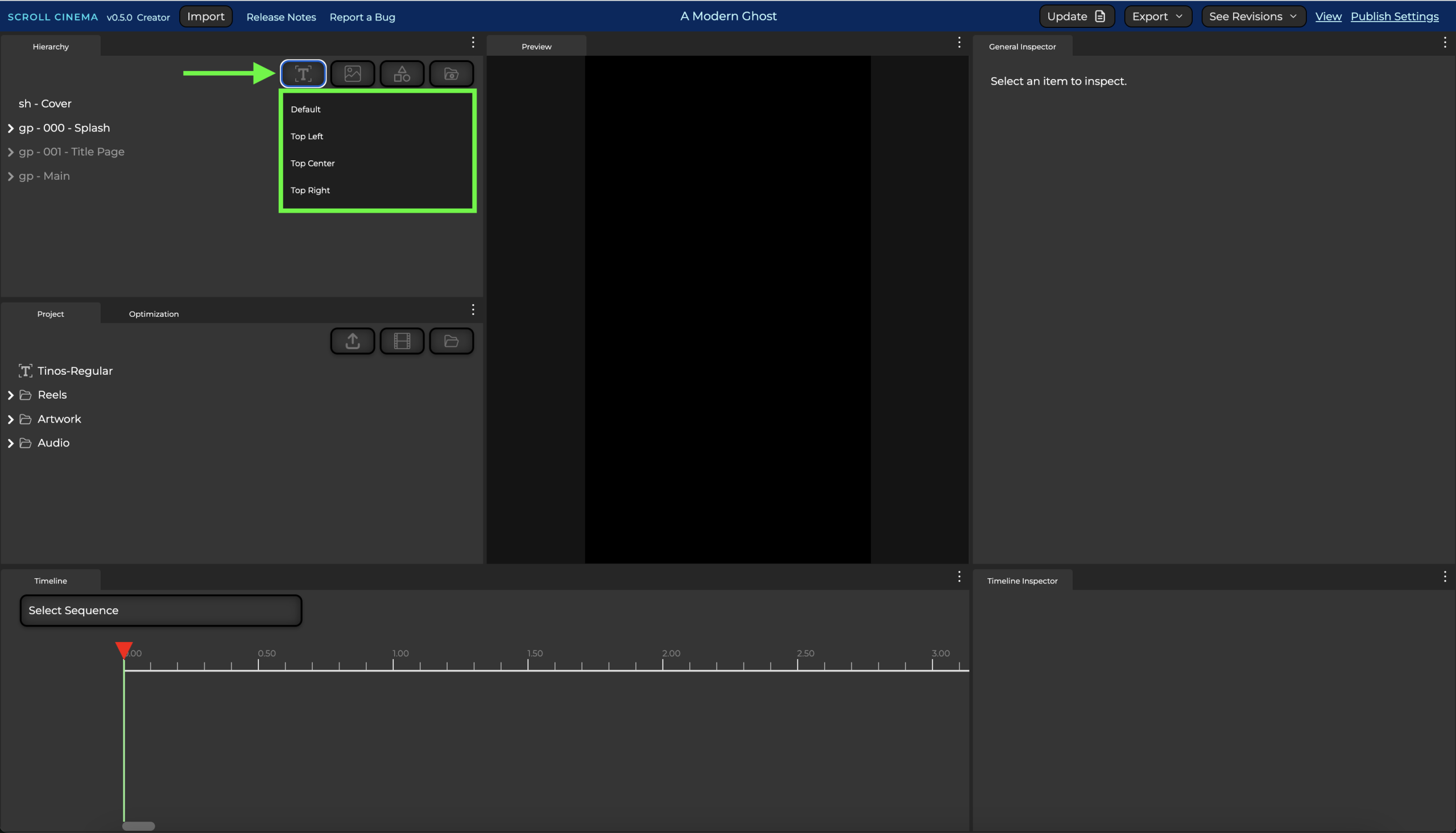
A new Text picker sets common default alignments and anchor points to cut down on manual text configuration.
Performance Improvements (Super Compression)
This latest version includes dramatic under-the-hood runtime improvements, including support for super-compressed textures, ensuring Scroll Cinema projects can perform well on as many devices as possible while minimizing effects to visual fidelity.
These improvements open a pathway for incorporating more frame-by-frame animation into projects, which can require dozens of images and would previously cause many mobile devices to crash.
You can take advantage of the new super compression by simply creating spritesheets using the Optimization tab.
Bug Fixes and Quality of Life Improvements
This version includes many other improvements, including:
- Fixed drag and dropping in hierarchy
- New nodes in hierarchy will now get created in logical hierarchy order if a node selection exists
- Improved reliability and UX of copying and pasting keyframes and clips
- Added error state if clips or keyframes overlap
- Improved dragging UX for timeline scrubber so the mouse doesn’t need to remain precisely over the timeline header to scrub
- Improved marquee selection to include autorun markers
- Fixed erratic horizontal scrollbar behavior in Timeline when timeline assets are selected
- Fixed erratic selection behavior when picking more than one timeline asset
- Improved performance when implementing trigger tracks
- Improved Node and Image search with new Item Selector in Logic Inspector
- Improved Hierarchy jumping around when trying to rename nodes
- Added ActionTrigger summary to Logic Inspector
- Fixed track labels showing incorrect disabled state if parents are disabled
- Improved group node creation by adding selector for Empty Group or Parent Group
- Fixed creating parent group nodes not preserving hierarchy order
- Fixed copy and pasting keyframes and clips interfering with General Inspector values
- Fixed visual interference between with logic configuration in General Inspector and Timeline Inspector
- Added confirmation dialog before deleting reels
- Fixed imported project assets going into incorrect directory, causing errors when trying to delete assets
- Fixed related tracks not being deleted from unselected sequence when deleting project items
- Added containing folder to exports
- Fixed autoplay indicator not resetting when scrolling through autorun intervals
- Fixed clips sometimes not being evaluated in correct order
- Addressed inconsistent default line height causing unexpected layout issues in Samsung Internet browser
- Added warning when using word wrap width to inform of potential browser inconsistencies
Breaking Changes
Line Height — Due to a fix addressing default line heights not rendering consistently across browsers, projects may see the line height of their text change when updating to v0.5.0, so you may need to adjust your line height depending on your layout.
Spritesheets — Due to the performance optimizations, projects will need to regenerate spritesheets on updating to v0.5.0, otherwise the projects will not load.
Conclusion
Scroll Cinema is now capable of supporting robust and complicated projects up to several minutes in length with hundreds of assets.
The latest improvements and features should make the system resilient for end user experiences. On the editor side, there is still space to improve editor workflows and performance for larger projects in particular, which I’ll be working to address, though the system overall scales fairly well.
That being said, stay tuned for the next batch of features, including branching paths and gameplay logic, as well as further quality-of-life improvements and better workflows.
Let me know how things go, and as always, feel free to leave a comment or join us on Discord. Looking forward to seeing what you make!
Leave a Reply